

Knowledgebase
How to Download, Install & Activate Microsoft Office LTSC 2024 Standard in Sri Lanka

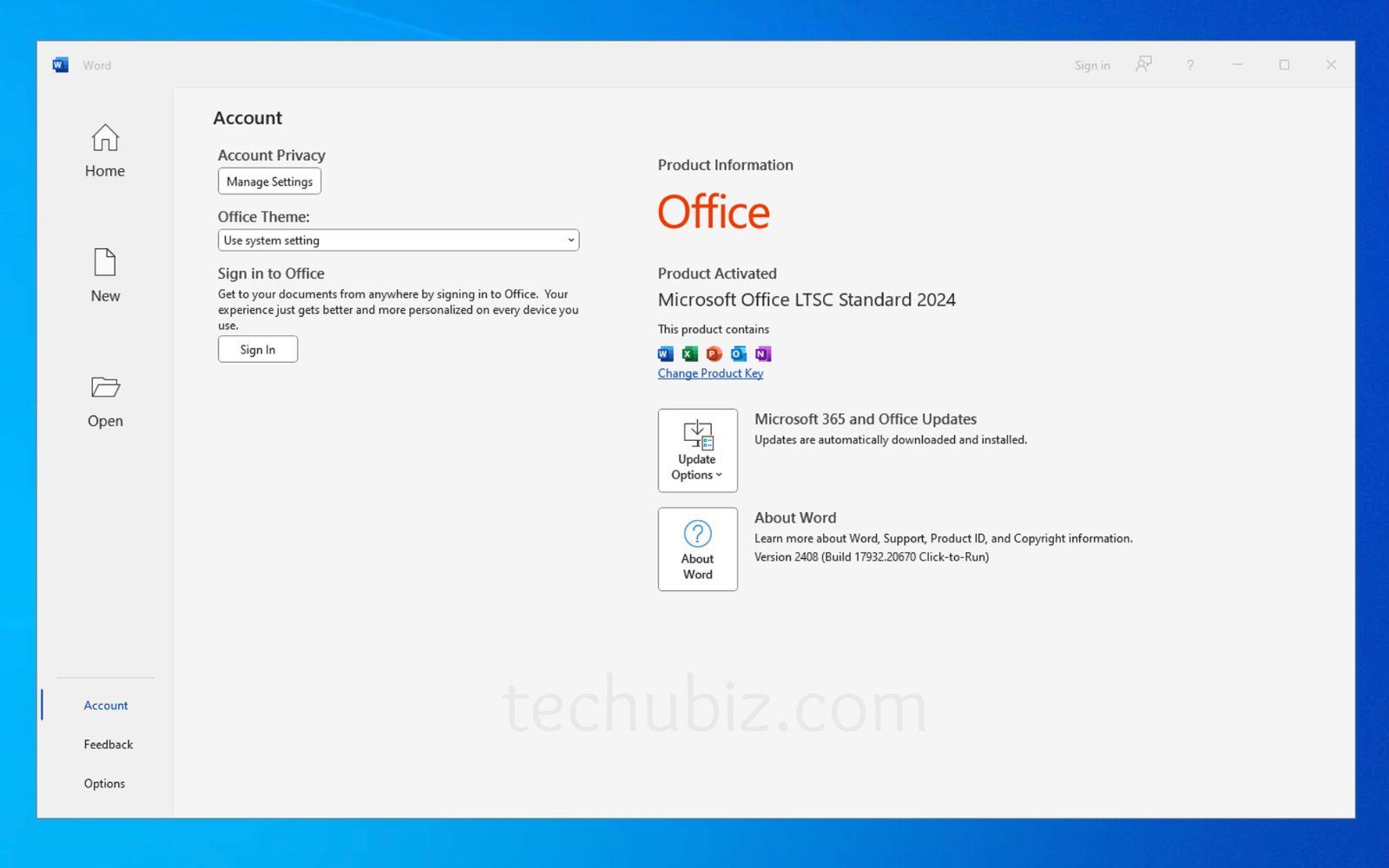
If you’re looking to buy Microsoft Office LTSC 2024 Standard in Sri Lanka, this guide will help you download, install, and activate it correctly on your Windows PC.
Microsoft Office LTSC 2024 Standard is ideal for Sri Lankan businesses, schools, government offices, and SMEs that need stable, long-term Office applications without paying monthly subscription fees like Microsoft 365.
It includes:
- Microsoft Word 2024
- Microsoft Excel 2024
- Microsoft PowerPoint 2024
- Microsoft Outlook 2024
This is a one-time purchase license with long-term security updates and no feature changes over time — perfect for professional environments in Sri Lanka.
System Requirements – Office LTSC 2024 Standard (Windows)
Before installing, make sure your PC meets these requirements:
| Requirement | Details |
|---|---|
| Operating System | Windows 10, Windows 11, Windows Server 2019 / 2022 / 2025 |
| Processor | 1.6 GHz or faster, Dual-Core (x64) |
| RAM | 4 GB or more |
| Storage | Minimum 4 GB free disk space |
| Display | 1280 × 768 resolution |
| Internet | Broadband (20 Mbps recommended in Sri Lanka) |
| Graphics | DirectX 9 or later with WDDM 2.0 driver |
⚠️ Note: Office LTSC 2024 Standard does NOT support macOS. It is Windows-only.
Step 1: Uninstall Previous Office Versions (Important)
To avoid activation errors, remove older Office versions first.
How to Uninstall:
- Open Control Panel
- Go to Programs and Features
- Find existing Microsoft Office version
- Right-click → Click Uninstall
- Restart your computer
⏳ This may take several minutes depending on your PC speed.
Method 1: One-Click Installation (Recommended for Sri Lanka Users)
After downloading your Office LTSC 2024 Standard setup file:
Buy genuine Activation Key for office 2024 Standard| Language | 64‑bit | 32‑bit |
|---|---|---|
| Deutsch | Herunterladen | Herunterladen |
| English | Download | Download |
| Français | Télécharger | Télécharger |
| Italiano | Scarica | Scarica |
| Español | Descargar | Descargar |
- Right-click the file
- Select Run as Administrator
- Wait for installation to complete
- Open Word or Excel
- Enter your product key
- Activate Office
To check or change product key:
- Open Word or Excel
- Go to File → Account
Method 2: Direct Installation from Microsoft (Using Office Deployment Tool)
For IT professionals and corporate users in Sri Lanka, use the official method below.
Step 1: Download Office Deployment Tool (ODT)
- Download the Office Deployment Tool from Microsoft
- Create a folder:
C:\Office2024Setup- Run the downloaded file
- Extract files into C:\Office2024Setup
You should see:
- setup.exe
- Sample XML files
Step 2: Create Configuration File
- Open Notepad
- Paste the following:
<Configuration>
  <Add OfficeClientEdition="64" Channel="PerpetualVL2024">
    <Product ID="Standard2024Volume" PIDKEY="XXXXX-XXXXX-XXXXX-XXXXX-XXXXX">
      <Language ID="en-us" />
    </Product>
  </Add>
  <RemoveMSI />
  <Display Level="None" AcceptEULA="TRUE" />
  <Property Name="AUTOACTIVATE" Value="1" />
</Configuration>
Replace XXXXX with your original Office LTSC 2024 Standard product key.
Save as:
- File name: configuration.xml
- Save as type: All Files
- Encoding: UTF-8
- Save inside: C:\Office2024Setup
Step 3: Install Office via Command Prompt
- Open Command Prompt as Administrator
- Run:
cd C:\Office2024SetupThen run:
setup.exe /configure configuration.xml⚠️ Installation runs silently in the background.
Installation is complete when:
- Command prompt returns to blinking cursor
- Office apps appear in Start Menu
- Word / Excel opens successfully
Step 4: Activate by Telephone (If Required)
- Open any Office app
- Choose activation by telephone
- Call the number shown
- Enter Confirmation ID. you can get it here https://techubiz.com/microsoft-get-cid/
Activation complete – No Microsoft account required.
Frequently Asked Questions (Sri Lanka)
Can I activate Office LTSC 2024 with a Microsoft account?
No. It uses volume licensing (key-based or telephone activation).
Is this a lifetime license in Sri Lanka?
Yes. It is a one-time purchase and does not expire. Valid for one device.
Is it compatible with Mac?
No. Only Windows 10 and Windows 11 supported.
What is the difference between Standard and Professional Plus?
Standard includes:
- Word
- Excel
- PowerPoint
- Outlook
Professional Plus includes additional apps like Access.
What does LTSC mean?
LTSC = Long-Term Servicing Channel
It provides stability without feature updates — only security updates.
Can I install on multiple PCs?
No. Standard license is typically for 1 PC unless your volume agreement states otherwise.
Does Office work offline?
Yes. After activation, it works fully offline.


 Windows 11
 Windows 10
 Windows 8
 Windows 7
 Windows XP
 Microsoft 365
 Office 2021
 Office 2019
 Office 2013
 Office 2010
 Project 2021
 Project 2019
 Project 2016
 Visio 2021
 Visio 2019
 Visio 2016
 Server



 CAD & 3D, 2D